Projecting an iPad in class

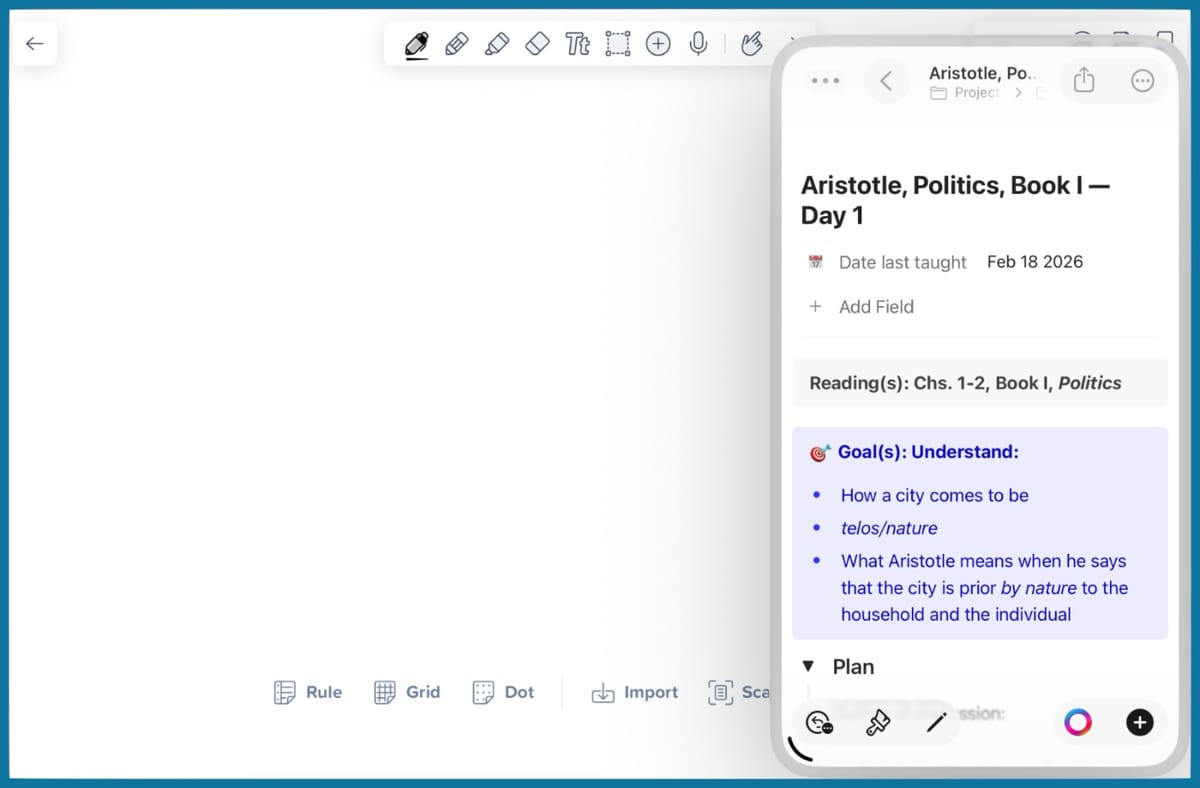
Occasionally in class, I like to use the Notability app on my iPad as a whiteboard projected via AirPlay. It used to be that I could have Notability open on the left in split-screen mode and another app open on the right, and only Notability would project. That made it easy for me to use reference material without having to show that reference material on screen.
When I tried to do this in the last few days, though, I discovered that my whole screen was projected. It didn’t matter whether I was in split-screen mode or pulled in an app from Slide Over — if it was on my iPad screen, it was also being projected.
Though I’m not a fan of Stage Manager, I turned it on, thinking at least I could quickly switch between full-screen apps, even though that wasn’t ideal.
Imagine my surprise when I discovered that turning on Stage Manager resulted in the behavior I wanted: I could have a full-screen app and an app in Slide Over, and only the full-screen app would be projected.
I guess it pays to experiment.